コンテンツにスキップ

Blog

Astro Starlightでサイトマップを追加する方法

AstroのテンプレートStarlightプロジェクトにサイトマップを設定したので備忘録。

Starlightでのサイトマップ設定

Starlightには、サイトマップ生成機能が組み込まれています。

サイトマップを有効にするには、astro.config.mjsファイルのsiteオプションにURLを設定するだけです。

astro.config.mjs
import { defineConfig } from 'astro/config';
import starlight from '@astrojs/starlight';
export default defineConfig({
site: 'https://example.com',
integrations: [
starlight({
title: 'サイトマップを設定したサイト'
}),
],
});

この設定により、ビルド時に自動的にサイトマップが生成されます。

robots.txtの設定

サイトマップを設定したら、次はrobots.txtファイルにサイトマップへのリンクを追加します。

これにより、クローラーがサイトマップを見つけやすくなります。

静的なrobots.txtファイルの作成

直接robots.txtを作成する場合はこちらの方法を使います。

public/robots.txtファイルを作成し、以下の内容を追加します:

public/robots.txt
User-agent: *
Allow: /
Sitemap: https://example.com/sitemap-index.xml

動的なrobots.txtファイルの生成

astro.config.mjssite値を再利用して動的にrobots.txtを生成することもできます。

public/ディレクトリに静的ファイルを置く代わりに、src/pages/robots.txt.tsファイルを作成し、以下のコードを追加します:

src/pages/robots.txt.ts
import type { APIRoute } from 'astro';
const getRobotsTxt = (sitemapURL: URL) => `
User-agent: *
Allow: /
Sitemap: ${sitemapURL.href}
`;
export const GET: APIRoute = ({ site }) => {
const sitemapURL = new URL('sitemap-index.xml', site);
return new Response(getRobotsTxt(sitemapURL));
};

この方法では、astro.config.mjsで設定したsiteURLが自動的に使用されるため、URLの変更があった場合でも一箇所の修正で済みます。

サイトマップの確認

設定が完了したら、ビルドを実行してサイトマップが正しく生成されているか確認しましょう。

Terminal window
pnpm build

ビルド後、ブラウザでhttps://example.com/sitemap-index.xmlにアクセスして、サイトマップの内容を確認できます。

サイトマップを追加できたら、Google Search Consoleなどのツールでサイトマップを登録して、クローラーに通知しましょう。

Cloudflareでドメインを購入してPagesに登録する

今まではお名前.comやAWSでドメインを購入していましたが、Cloudflareでデプロイすることが多くなり、ドメインもCloudflareで購入することにしました。

購入方法を備忘録として残します。

Cloudflare Pagesでドメインを購入する

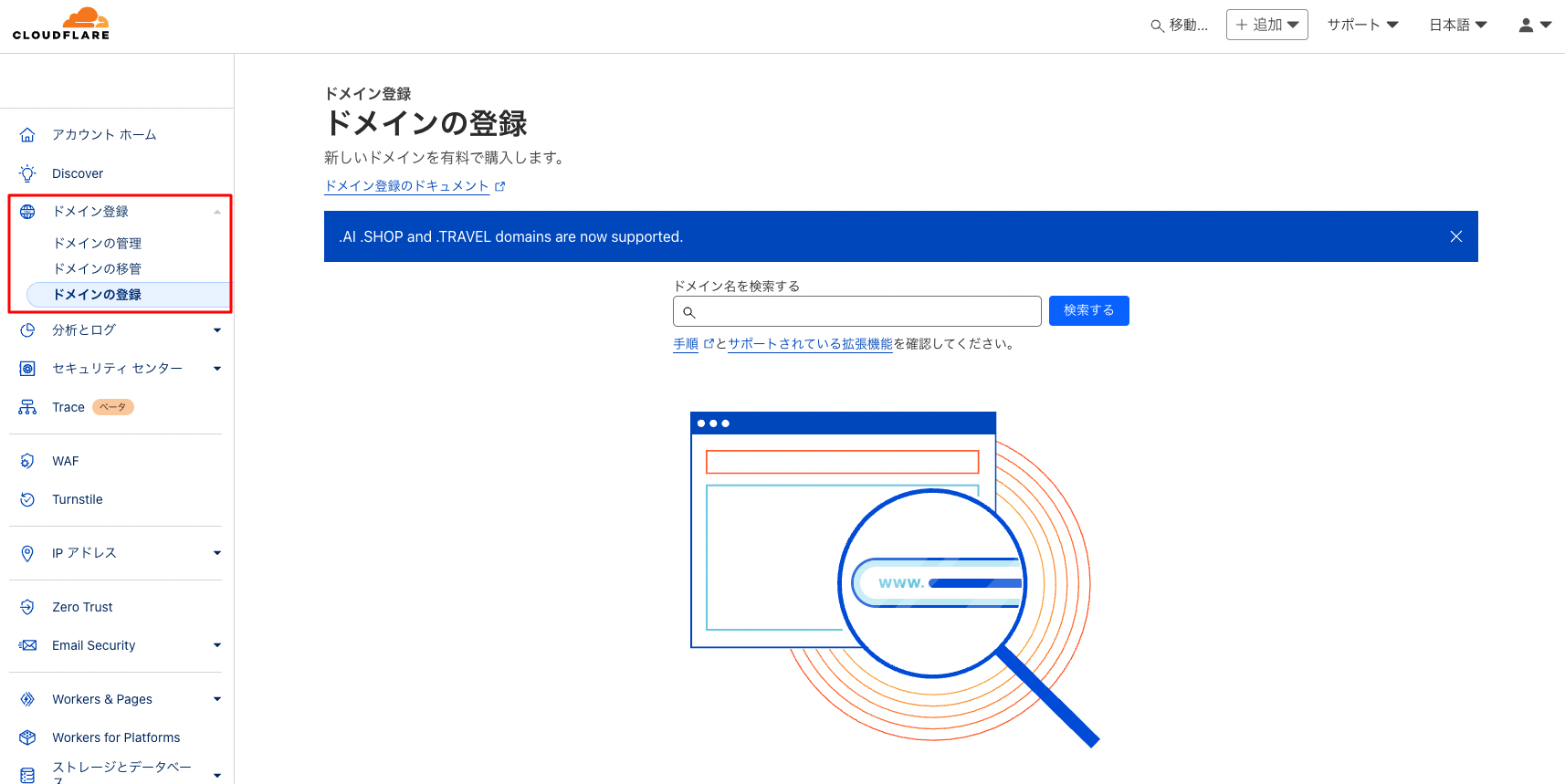
  1. Cloudflareのダッシュボードの左側のメニューから「ドメイン登録」を選択します。

    Image from Gyazo

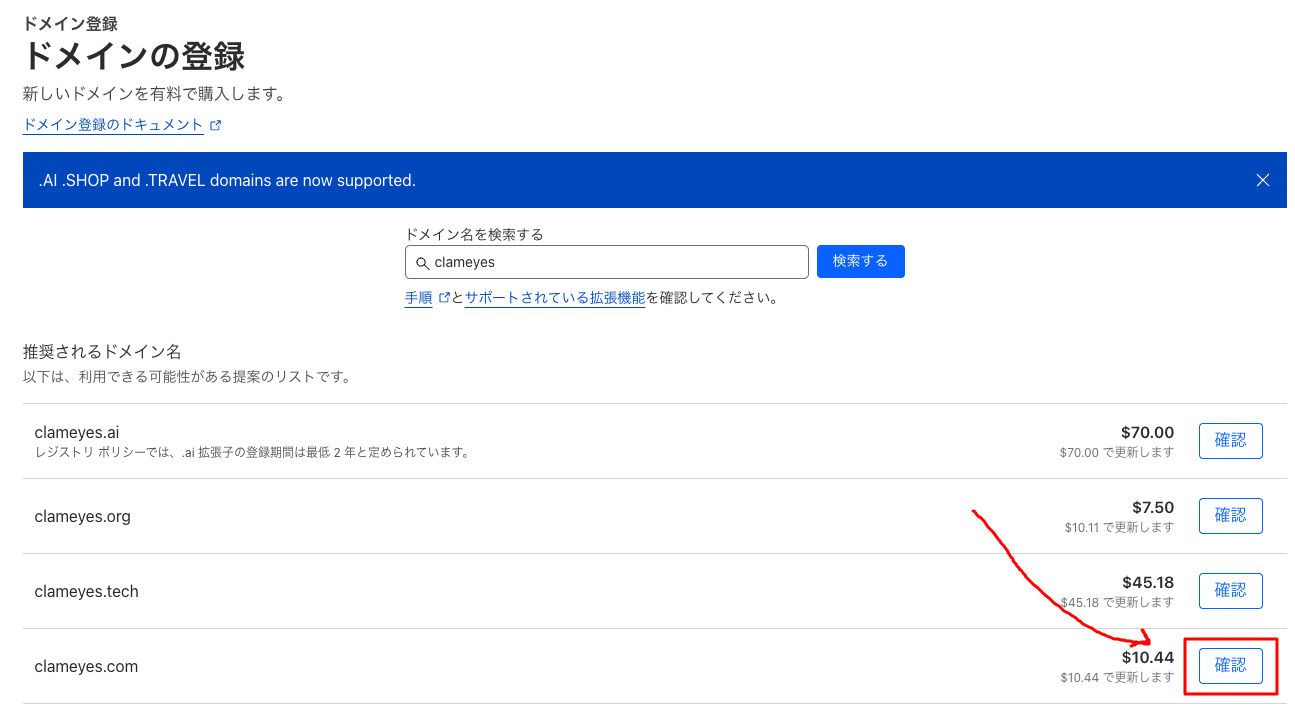
  2. 追加したいドメインを検索して、「確認」ボタンをクリックします。

    Image from Gyazo

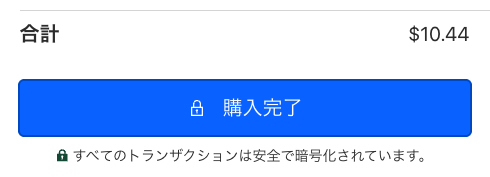
  3. 登録を完了するページに遷移するので、支払い情報を入力して「購入完了」ボタンをクリックします。

    Image from Gyazo

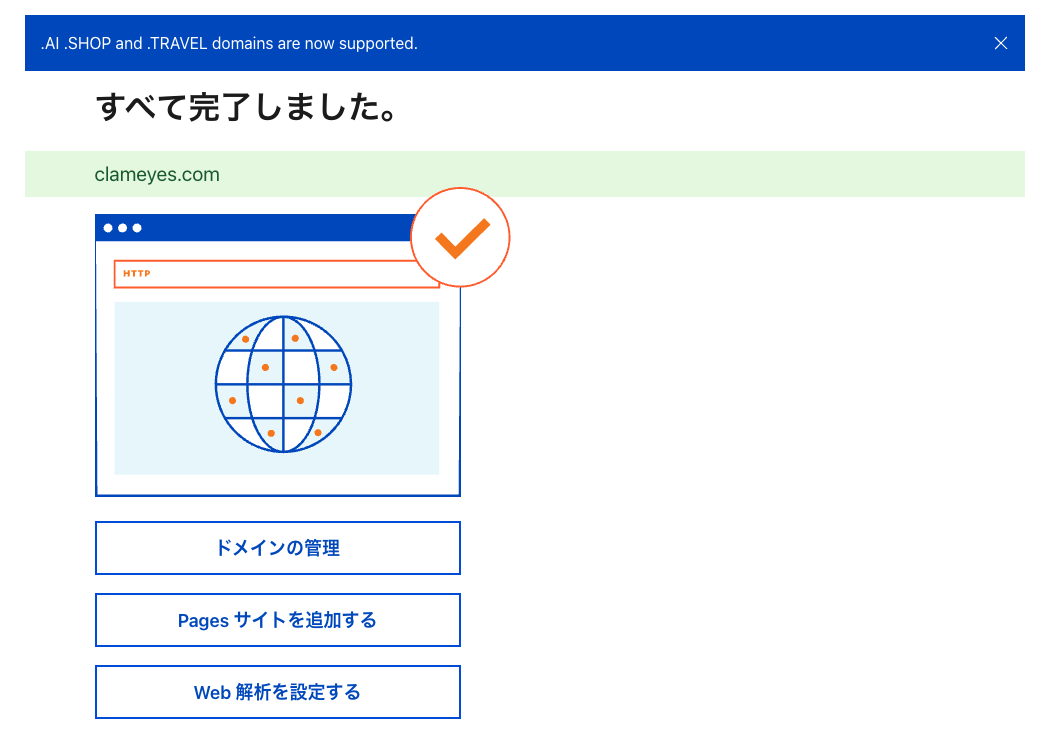
  4. 購入が完了すると、下記のようなメッセージが表示されます。

    Image from Gyazo

エラーが発生した場合

ドメイン購入時に下記のようなエラーが発生した場合の対処方法です。

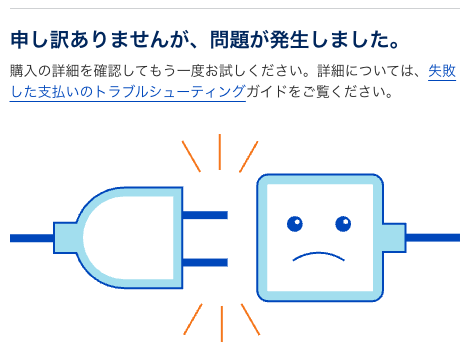
実際には下記の画像のようなエラーが表示されます。

申し訳ありませんが、問題が発生しました。

調べてみると、楽天カードだとCloudflareの決済が失敗するらしいです。

https://blog.stin.ink/articles/sitn-ink-from-google-to-cloudflare

これ以外の可能性もありますが、一度他のクレジットカードで試してみると良いかもしれません。

私の場合は、SMBCに切り替えたら購入することができました。

ドメインの設定

ドメインを購入したら、Pagesに登録して使えるように設定します。

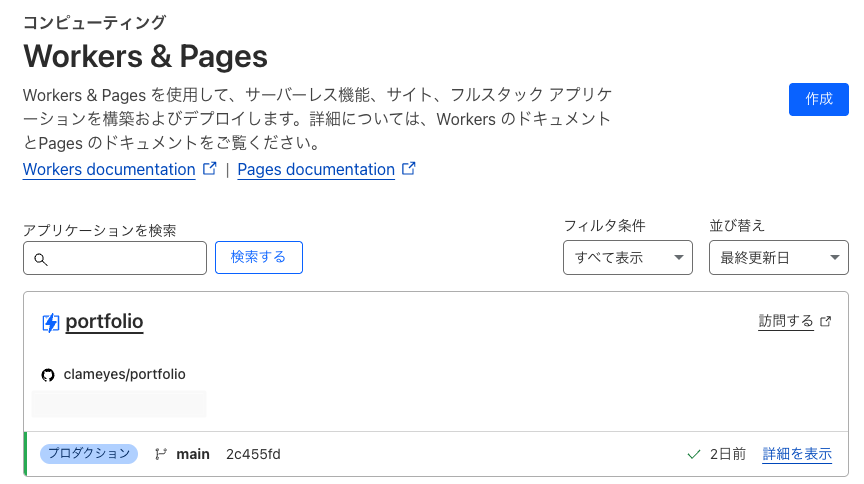
  1. Cloudflareのダッシュボードから「Workers & Pages」を選択し、購入したドメインを利用したいプロジェクトを選択します。

    Image from Gyazo

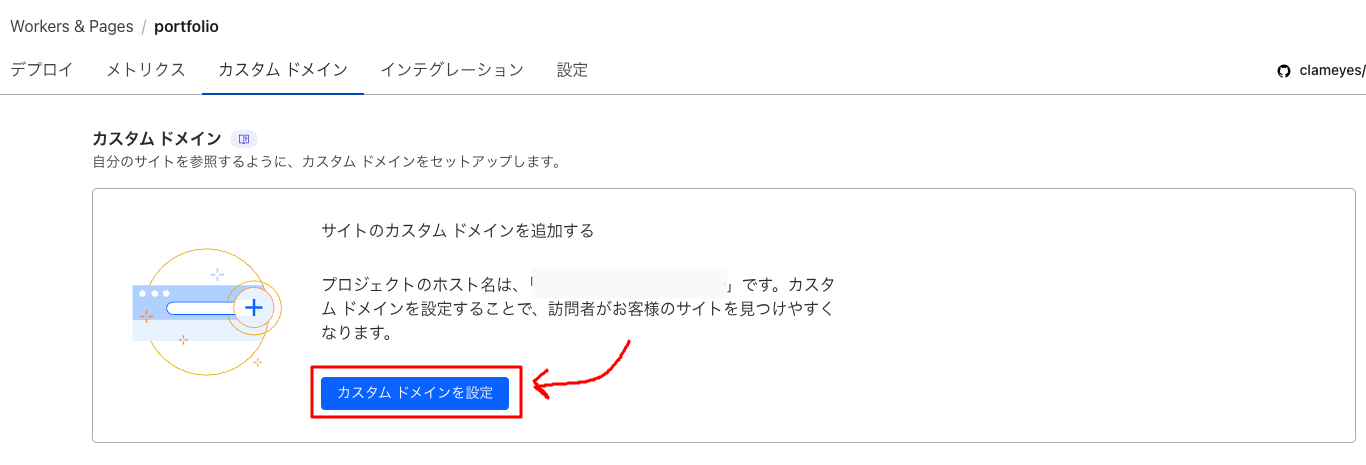
  2. 続いて「カスタムドメイン」タブを選択し、「カスタムドメインを設定」ボタンをクリックします。

    Image from Gyazo

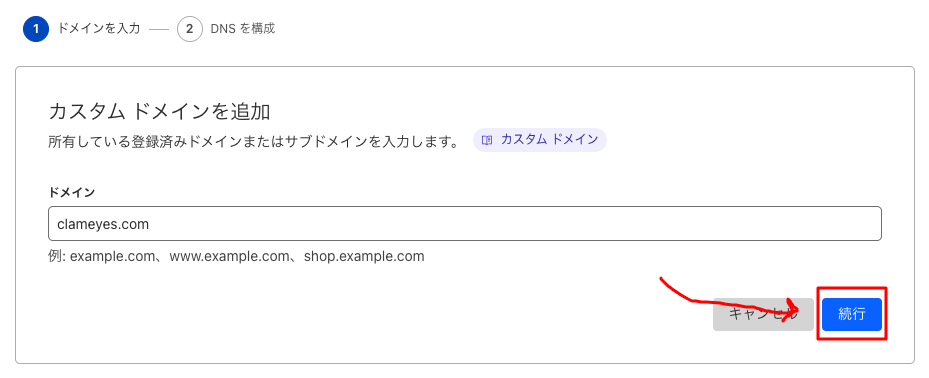
  3. ドメイン名を入力し、「続行」ボタンをクリックします。

    Image from Gyazo

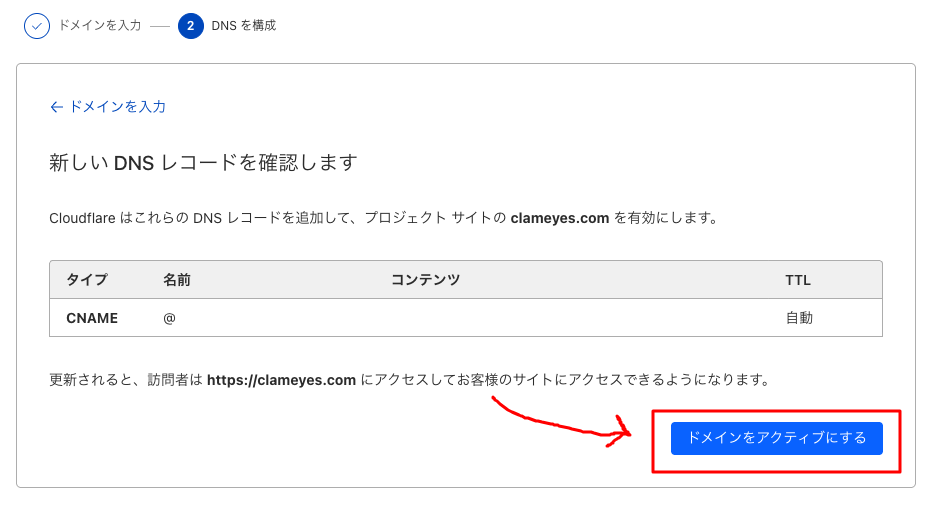
  4. 設定を確認し、問題なければ「ドメインをアクティブにする」ボタンをクリックします。

    Image from Gyazo

これでドメインの設定が完了しました。

実際に使えるようになるまでには少し時間がかかるので、気長に待ちましょう。(最大48時間)

TerraformでCloudflare PagesにAstroをデプロイ(GitHub連携)

Terraform(またはOpenTofu)を使用してCloudflare PagesにAstroプロジェクトをGithub連携でデプロイしたので備忘録として残します。

Terraformを使用することで、インフラをコードとして管理し、デプロイプロセスを自動化できます。

前提条件

  • Terraform(またはOpenTofu)がインストールされていること
  • Cloudflareアカウントとアクセストークン
  • GitHubアカウントとリポジトリにプッシュされたAstroプロジェクト

また、今回は個人開発前提なので下記の運用とします。

  • Astroプロジェクトのgitレポジトリにそのままtfファイルを追加(モノレポ)
  • tfstateファイルはローカルでのみ管理

手順

Terraformプロジェクトの設定

まず、Terraformの設定ファイルを作成します。

Terminal window
touch main.tf variables.tf

variables.tfファイルの作成

variables.tfファイルに必要な変数を定義します。

variables.tf
variable "cloudflare_api_token" {
description = "Cloudflare API Token"
type = string
}
variable "cloudflare_account_id" {
description = "Cloudflare Account ID"
type = string
}
variable "production_branch" {
description = "Production branch name"
type = string
default = "main"
}
variable "github_repo_name" {
description = "Name of GitHub repository"
type = string
}
variable "github_owner" {
description = "Owner of GitHub repository"
type = string
}

main.tfファイルの作成

main.tfファイルにCloudflare Pagesプロジェクトのリソースを追加します。

main.tf
terraform {
required_providers {
cloudflare = {
source = "cloudflare/cloudflare"
version = "~> 3.0"
}
}
}
provider "cloudflare" {
api_token = var.cloudflare_api_token
}
resource "cloudflare_pages_project" "astro_project" {
account_id = var.cloudflare_account_id
name = var.github_repo_name
production_branch = var.production_branch
source {
type = "github"
config {
owner = var.github_owner
repo_name = var.github_repo_name
production_branch = "main"
pr_comments_enabled = true
deployments_enabled = true
production_deployment_enabled = true
}
}
build_config {
build_command = "npm run build"
destination_dir = "dist"
root_dir = "/"
}
deployment_configs {
preview {
environment_variables = {
NODE_VERSION = "20.9.0"
}
}
production {
environment_variables = {
NODE_VERSION = "20.9.0"
}
}
}
}
pnpmを使う場合は、`build_command`を`npm i -g pnpm && pnpm i && pnpm build`に変更してください。

tfvarsファイルの作成(オプション)

terraform.tfvarsファイルにCloudflare API TokenとアカウントIDを追加します。

これを書いておくと、terraform applyコマンドを実行する際に変数の値を入力する必要がなくなります。

terraform.tfvars
cloudflare_api_token = "自分のCloudflare API Token"
cloudflare_account_id = "自分のCloudflare Account ID"
github_repo_name = "Astroプロジェクトのリポジトリ名"
github_owner = "Astroプロジェクトのリポジェクトのオーナー名"

branchはデフォルトでmainになっていますが、変更したい場合はterraform.tfvarsに追加してください。

カスタムドメインの設定(オプション)

カスタムドメインを設定する場合は、以下のリソースをmain.tfに追加します。

main.tf
resource "cloudflare_pages_domain" "custom_domain" {
account_id = var.cloudflare_account_id
project_name = cloudflare_pages_project.astro_project.name
domain = "your-custom-domain.com"
}

Terraformの初期化と適用

以下のコマンドを実行して、Terraformプロジェクトを初期化し、リソースを作成します。

TerraformはライセンスがBSL1.1であるため、オープンソースの代替としてOpenTofuを使用することもできます。

Terminal window
terraform init
terraform apply -auto-approve

変数の値を入力するよう求められたら、適切な値を入力します。(terraform.tfvarsを作成している場合は不要)

デプロイの確認

Terraformの適用が完了したら、Cloudflareダッシュボードで新しく作成されたPagesプロジェクトを確認できます。

GitHubリポジトリへの変更がプッシュされると、自動的にビルドとデプロイが開始されます。

AstroのStarlightテンプレートにブログを追加する

Starlightはドキュメントサイト用のテンプレートですが、プラグインを追加することでブログを導入することもできます。

この記事では、AstroのStarlightテンプレートにブログ機能を追加する方法を紹介します。

Starlightプロジェクトの作成

Starlightでプロジェクトを作成していない方は、下記の記事を参考に作成してください。

Starlightのプロジェクトを作成する

ブログを導入する

ブログを導入するには、以下の手順に従ってください。

  1. 以下のコマンドをプロジェクトのルートで実行して、ブログを追加します。

    Terminal window
    pnpm add starlight-blog

  2. プラグインを追加するために、設定ファイルastro.config.mjsに以下のコードを追加します。

    astro.config.mjs
    import starlight from '@astrojs/starlight'
    import { defineConfig } from 'astro/config'
    import starlightBlog from 'starlight-blog'
    export default defineConfig({
    integrations: [
    starlight({
    plugins: [starlightBlog()],
    title: 'My Docs',
    }),
    ],
    })
  3. 右上にBlogのリンクが追加されているのでクリックしてブログを確認します。

    Image from Gyazo

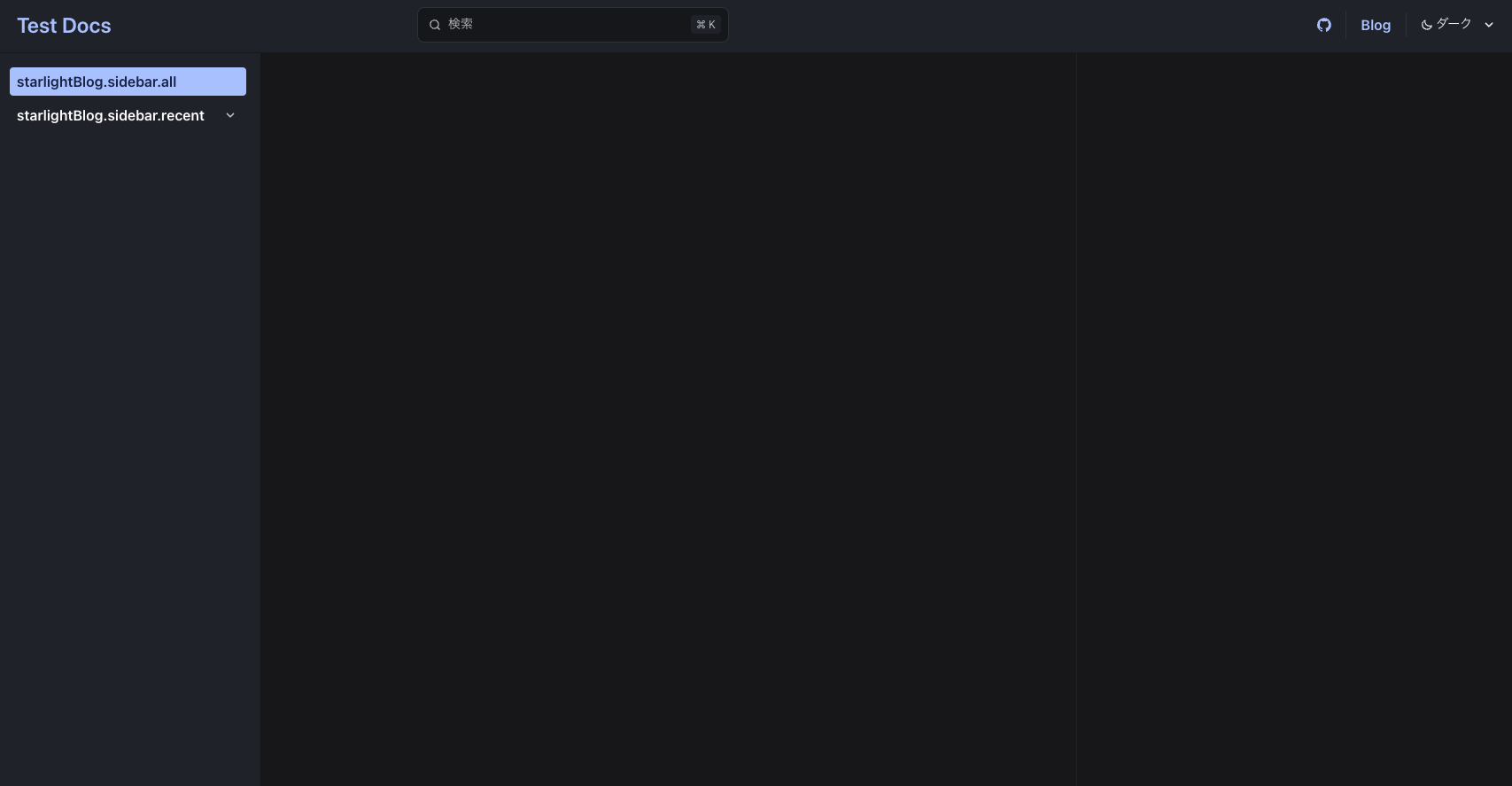
  4. ブログページが表示されます。

    Image from Gyazo

ブログ記事を追加する

ブログページができたので、実際にブログ記事を追加してみましょう。

  1. まず、ブログ記事を追加するためのスキーマを作成します。src/content.config.tsに以下のコードを追加します。

    src/content.config.ts
    import { defineCollection } from 'astro:content';
    import { docsLoader } from '@astrojs/starlight/loaders';
    import { docsSchema } from '@astrojs/starlight/schema';
    import { blogSchema } from 'starlight-blog/schema';
    export const collections = {
    docs: defineCollection({
    loader: docsLoader(),
    schema: docsSchema(
    {
    extend: (context) => blogSchema(context)
    }
    )
    }),
    };
  2. ブログ記事を追加するための、src/content/docs/blog/ディレクトリを作成します。

    bash/zsh
    mkdir -p src/content/docs/blog
  3. ブログ記事を追加するには、src/content/docs/blog/ディレクトリにmdまたはmdxファイルを作成します。

    md
    touch src/content/docs/blog/test.mdx
  4. 以下のコードをsrc/content/docs/blog/test.mdxに追加します。

    src/content/docs/blog/test.mdx
    ---
    title: Test
    date: 2025-03-10
    ---
    ## Test
    Test

    titleとdateは必須です。

  5. コマンドを実行して、ブログを確認します。

    Terminal window
    pnpm dev
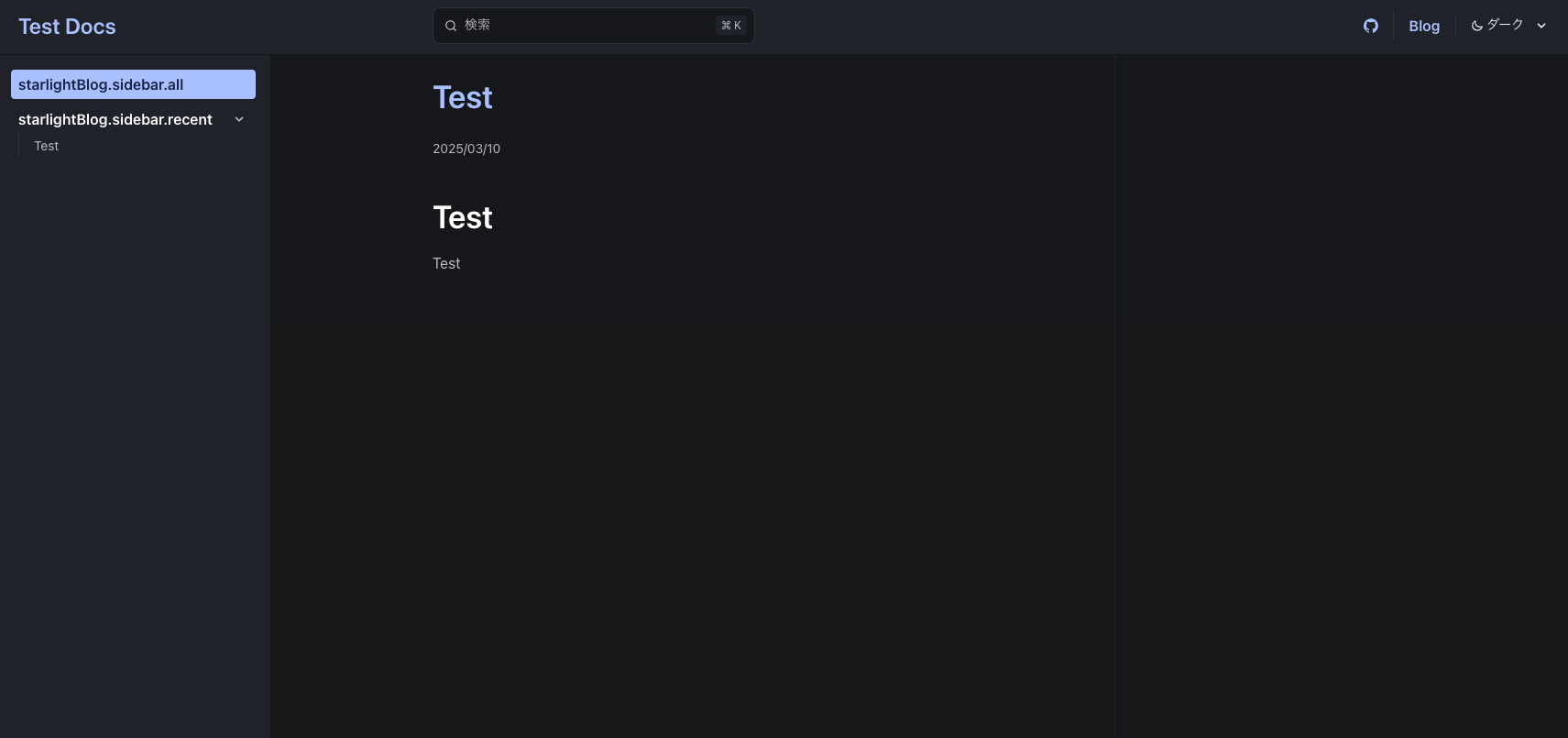
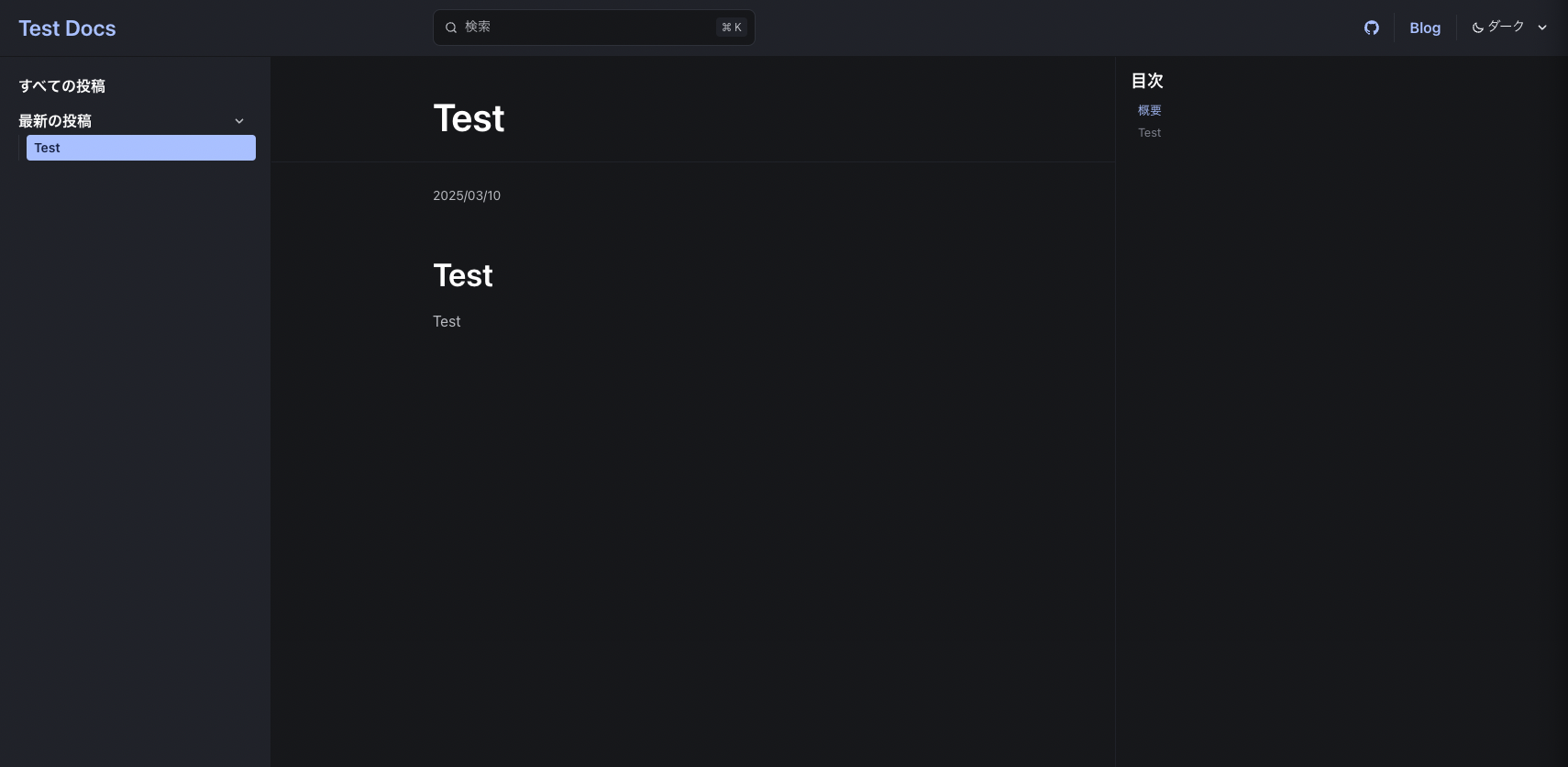
  6. localhost:4321/blog/を表示し、ブログ記事が表示されていることを確認します。

    Image from Gyazo

タグを追加する

ブログ記事にタグを追加することができます。

markdownファイルにtagsを追加することで、タグを追加できます。

src/content/docs/blog/test.mdx
---
title: test
date: 2025-03-10
tags: [test, astro]
---
## test
Test

これで、testastroのタグが追加されます。

日本語対応する

BlogプラグインのデフォルトUIに日本語が未対応なので、日本語対応を行います。

  1. src/content.config.tsに以下のコードを追加します。

    src/content.config.ts
    import { defineCollection } from 'astro:content';
    import { docsLoader, i18nLoader } from '@astrojs/starlight/loaders';
    import { docsSchema, i18nSchema } from '@astrojs/starlight/schema';
    import { blogSchema } from 'starlight-blog/schema';
    export const collections = {
    docs: defineCollection({
    loader: docsLoader(),
    schema: docsSchema(
    {
    extend: (context) => blogSchema(context)
    }
    )
    }),
    i18n: defineCollection({
    loader: i18nLoader(),
    schema: i18nSchema()
    }),
    };
  2. src/content/i18n/ディレクトリを作成します。

    bash/zsh
    mkdir -p src/content/i18n
  3. src/content/i18n/ディレクトリにja.jsonファイルを作成します。

    ja.json
    touch src/content/i18n/ja.json
  4. 以下のコードをsrc/content/i18n/ja.jsonに追加します。

    src/content/i18n/ja.json
    {
    "starlightBlog.authors.count_one": "{{author}}の投稿: {{count}} 件",
    "starlightBlog.authors.count_other": "{{author}}の投稿: {{count}} 件",
    "starlightBlog.pagination.prev": "新しい投稿",
    "starlightBlog.pagination.next": "古い投稿",
    "starlightBlog.post.lastUpdate": " - 最終更新日: {{date}}",
    "starlightBlog.post.draft": "下書き",
    "starlightBlog.post.featured": "おすすめ",
    "starlightBlog.post.tags": "タグ:",
    "starlightBlog.sidebar.all": "すべての投稿",
    "starlightBlog.sidebar.featured": "おすすめの投稿",
    "starlightBlog.sidebar.recent": "最新の投稿",
    "starlightBlog.sidebar.tags": "タグ",
    "starlightBlog.sidebar.authors": "著者",
    "starlightBlog.sidebar.rss": "RSS",
    "starlightBlog.tags.count_one": "“{{tag}}” の投稿: {{count}} 件",
    "starlightBlog.tags.count_other": "{{tag}}” の投稿: {{count}} 件"
    }
  5. コマンドを実行して、ブログを確認します。

    Terminal window
    pnpm dev
  6. localhost:4321/blog/を表示し、UIが日本語になっていることを確認します。

    Image from Gyazo

これで最低限日本語対応したブログを運営できるかと思います。

細かいカスタマイズは、Starlightのドキュメントを参考にしてください。

参考

AstroのテンプレートStarlightで簡単にドキュメントサイトを作る

Astroでドキュメントサイトを作るのにStarlightというテンプレートを使ってみたので、備忘録として残します。

サクッと日本語のドキュメントサイトをMarkdownで作りたい場合は、Starlightがおすすめです。

Astro/Starlightのインストール

まずは、Starlightを使ってプロジェクトを作成します。

  1. 以下のコマンドを実行して、Starlightを使ったプロジェクトを作成します(プロジェクト名は適宜お好きなものを入れてください)。

    Terminal window
    pnpm create astro プロジェクト名 --yes --template starlight

  2. 以下のようなメッセージが表示されたら、プロジェクトの作成が完了です。

    Terminal window
    Project initialized!
    Template copied
    Dependencies installed
    Git initialized
    next Liftoff confirmed. Explore your project!
    Enter your project directory using cd ./プロジェクト名
    Run pnpm dev to start the dev server. CTRL+C to stop.
    Add frameworks like react or tailwind using astro add.
    Stuck? Join us at https://astro.build/chat
    ╭─────╮ Houston:
    Good luck out there, astronaut! 🚀
    ╰─────╯
  3. インストールが完了したら、プロジェクトディレクトリに移動します(適宜自分が作成したプロジェクト名に修正してください)。

    Terminal window
    cd プロジェクト名
  4. ローカルサーバーを起動します。

    Terminal window
    pnpm dev
  5. ブラウザで http://localhost:4321 にアクセスして、トップページを確認します。
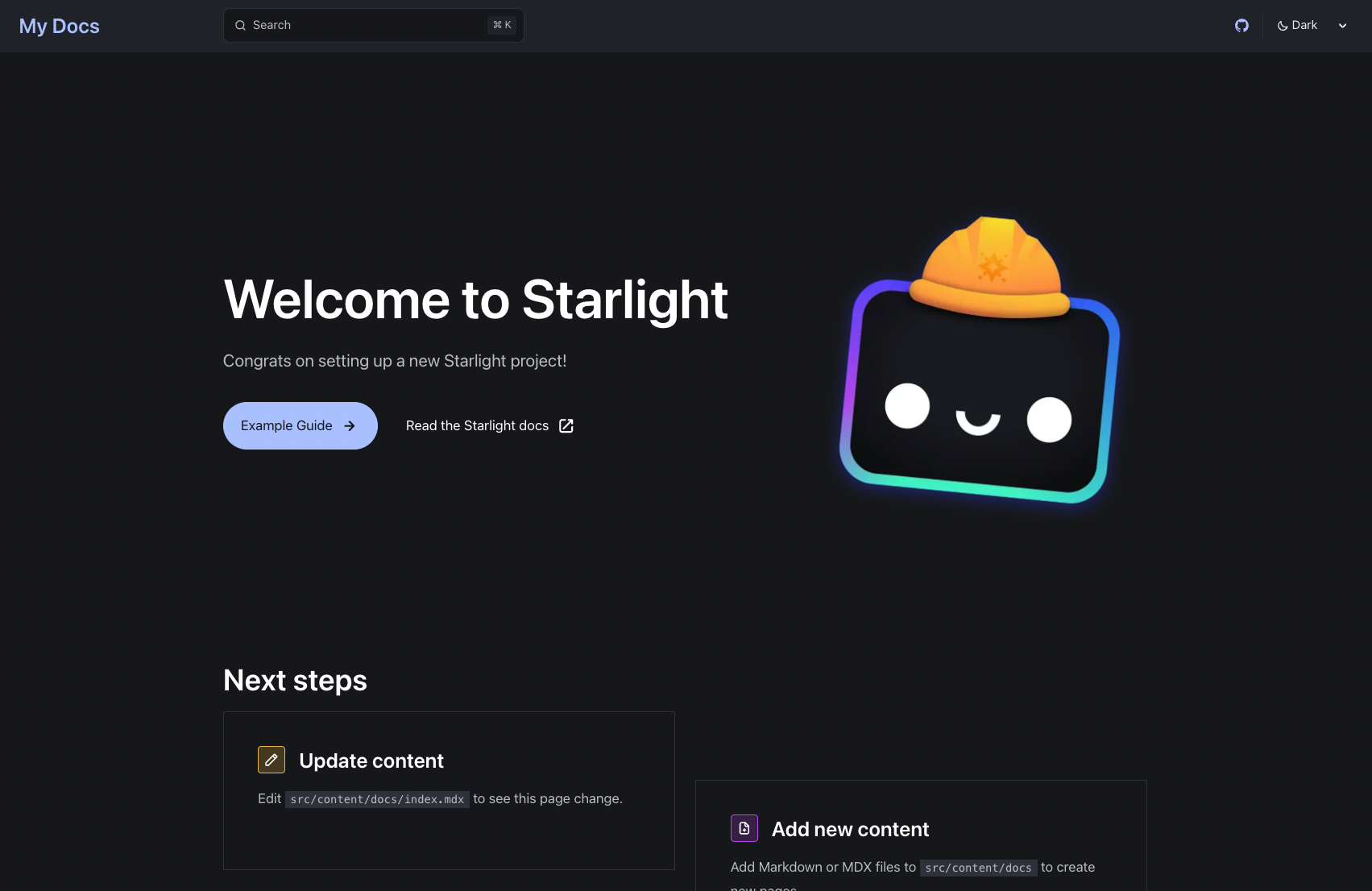
    Image from Gyazo

  6. 「Example Guide」ボタンをクリックすると、ドキュメントページに遷移します。
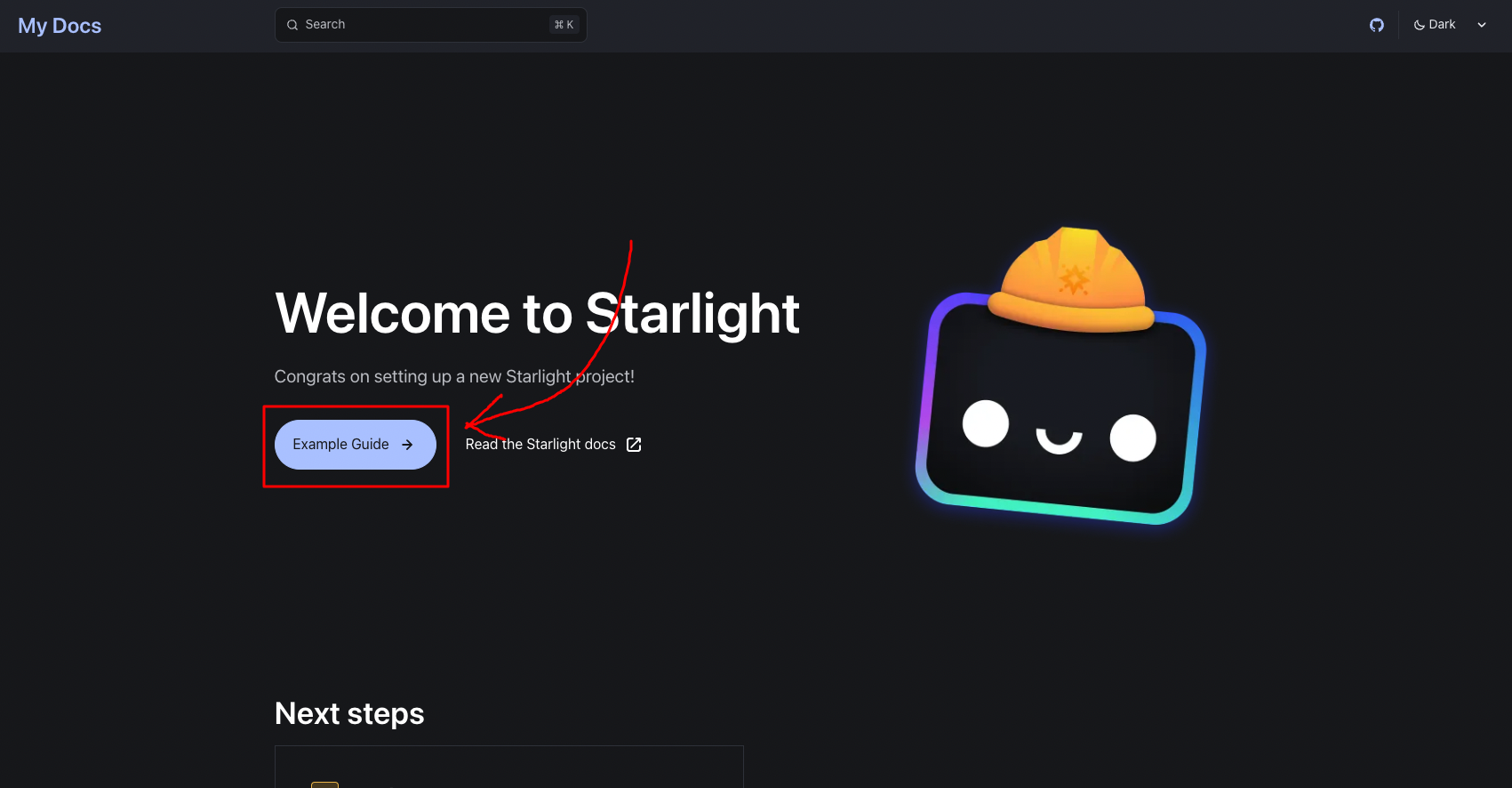
    Image from Gyazo

これで、AstroのテンプレートStarlightを使ってドキュメントサイトを作成することができました。

ドキュメントを追加する

サイトは作成できましたが、ドキュメントがまだありません。

ドキュメントを追加するには、src/content/docs/ディレクトリにmdまたはmdxファイルを作成します。

  1. プロジェクトのディレクトリで以下のコマンドを実行して、ドキュメントを追加します。

    Terminal window
    touch src/content/docs/test.md
  2. 作成したmdxファイルに以下の内容を記述します。

    src/content/docs/test.mdx
    ---
    title: test
    ---
    # test
  3. ローカルサーバーを起動します。

    Terminal window
    pnpm dev
  4. ブラウザでhttp://localhost:4321/testにアクセスして、ドキュメントが表示されることを確認します。
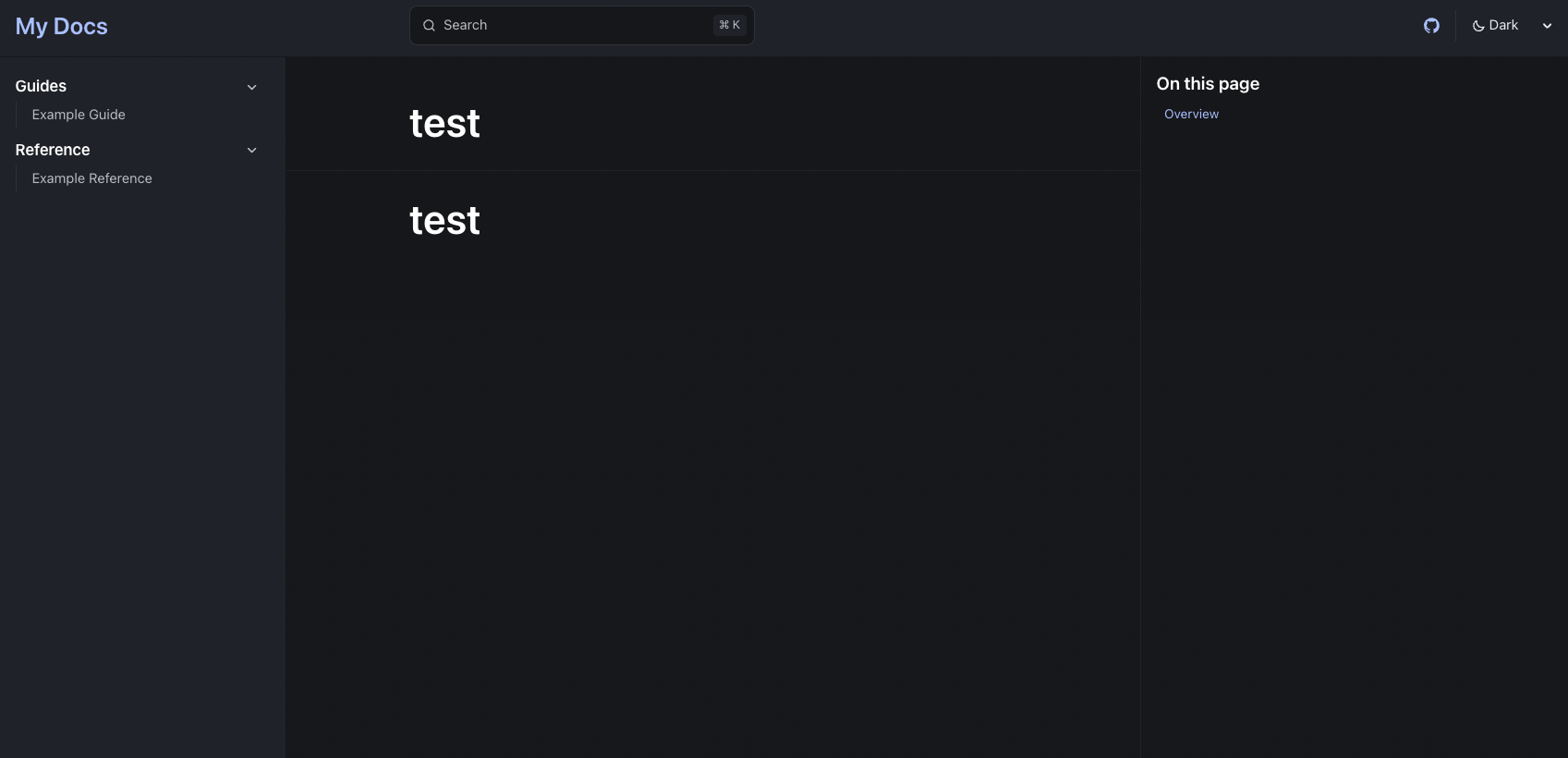
    Image from Gyazo

サイドバーにドキュメントを追加する

今のままだと、直接URLを入力しないとドキュメントにアクセスできません。

サイドバーにドキュメントのリンクを追加して、アクセスしやすくします。

  1. src/astro.config.mjsファイルを開いて、以下のようにsidebarを追加します。

    astro.config.mjs
    // @ts-check
    import { defineConfig } from 'astro/config';
    import starlight from '@astrojs/starlight';
    // https://astro.build/config
    export default defineConfig({
    integrations: [
    starlight({
    title: 'My Docs',
    social: {
    github: 'https://github.com/withastro/starlight',
    },
    sidebar: [
    {
    label: 'Guides',
    items: [
    // Each item here is one entry in the navigation menu.
    { label: 'Example Guide', slug: 'guides/example' },
    ],
    },
    {
    label: 'Reference',
    autogenerate: { directory: 'reference' },
    },
    {
    label: 'Test', link: '/test/'
    },
    ],
    }),
    ],
    });
  2. ローカルサーバーを再起動します。

    Terminal window
    pnpm dev
  3. ブラウザで http://localhost:4321 にアクセスし、「Example Guide」ボタンをクリックしてサイドバーにドキュメントが追加されていることを確認します。
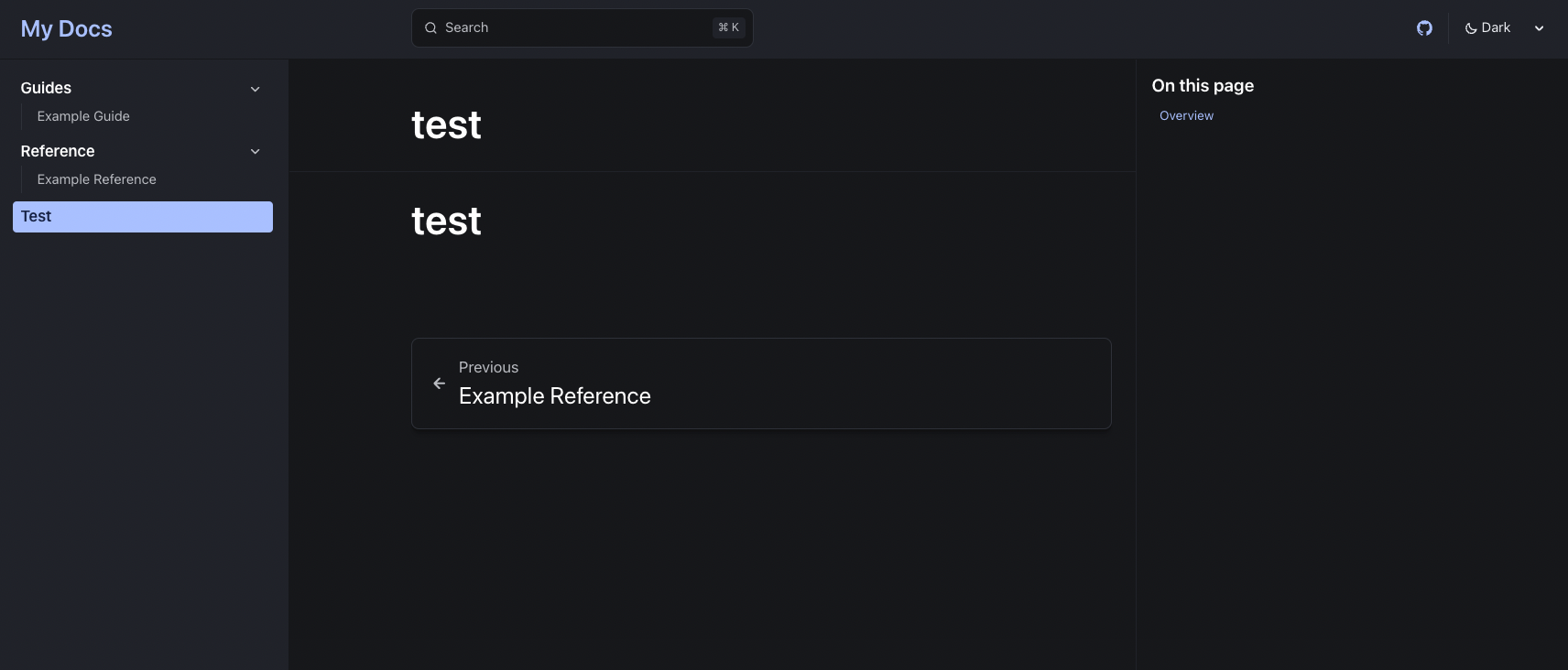
    Image from Gyazo

これで、サイドバーにドキュメントを追加することができました。

サイドバーにサブメニューを追加する

今のままだとサイドバーにドキュメントのリンクを追加することはできますが、ドキュメントサイトによくある分類されたサブメニューを追加することはできません。

既にサイドバーでサブメニューが使われているGuidesとReferenceを見てみましょう。

直接記述して生成する

まずは、直接記述してサブメニューを生成します。

Guidesのサブメニューをみてみましょう。

astro.config.mjs
// @ts-check
import { defineConfig } from 'astro/config';
import starlight from '@astrojs/starlight';
// https://astro.build/config
export default defineConfig({
integrations: [
starlight({
title: 'My Docs',
social: {
github: 'https://github.com/withastro/starlight',
},
sidebar: [
{
label: 'Guides',
items: [
// Each item here is one entry in the navigation menu.
{ label: 'Example Guide', slug: 'guides/example' },
],
},
{
label: 'Reference',
autogenerate: { directory: 'reference' },
},
{
label: 'Test', link: '/test/'
},
],
}),
],
});

sidebarの中にGuidesというラベルがあり、その中にitemsという配列があります。itemsの中には、サブメニューの項目が入っています。

Guidesのサブメニューに新しい項目を追加するには、itemsの中に新しい項目を追加します。

実際にtest.mdのリンクを追加してみましょう。

astro.config.mjs
// @ts-check
import { defineConfig } from 'astro/config';
import starlight from '@astrojs/starlight';
// https://astro.build/config
export default defineConfig({
integrations: [
starlight({
title: 'My Docs',
social: {
github: 'https://github.com/withastro/starlight',
},
sidebar: [
{
label: 'Guides',
items: [
// Each item here is one entry in the navigation menu.
{ label: 'Example Guide', slug: 'guides/example' },
{ label: 'Test', slug: 'test' },
],
},
{
label: 'Reference',
autogenerate: { directory: 'reference' },
},
{
label: 'Test', link: '/test/'
},
],
}),
],
});

slugには、src/content/docs/ディレクトリに作成したmdまたはmdxファイルの名前を指定します。(今回はtest.mdxなので、slugにはtestを指定します)

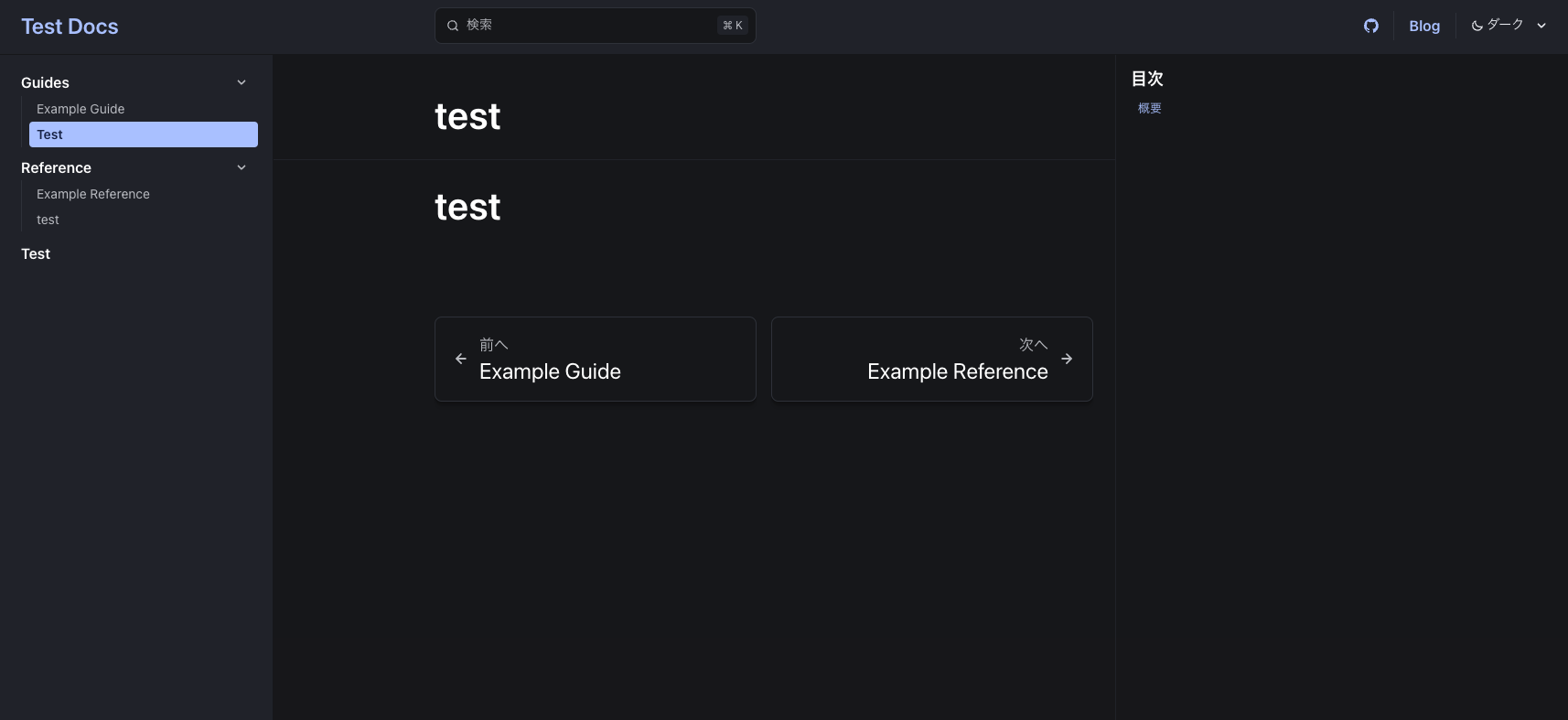
サーバーを起動して、サイドバーにサブメニューが追加されていることを確認します。
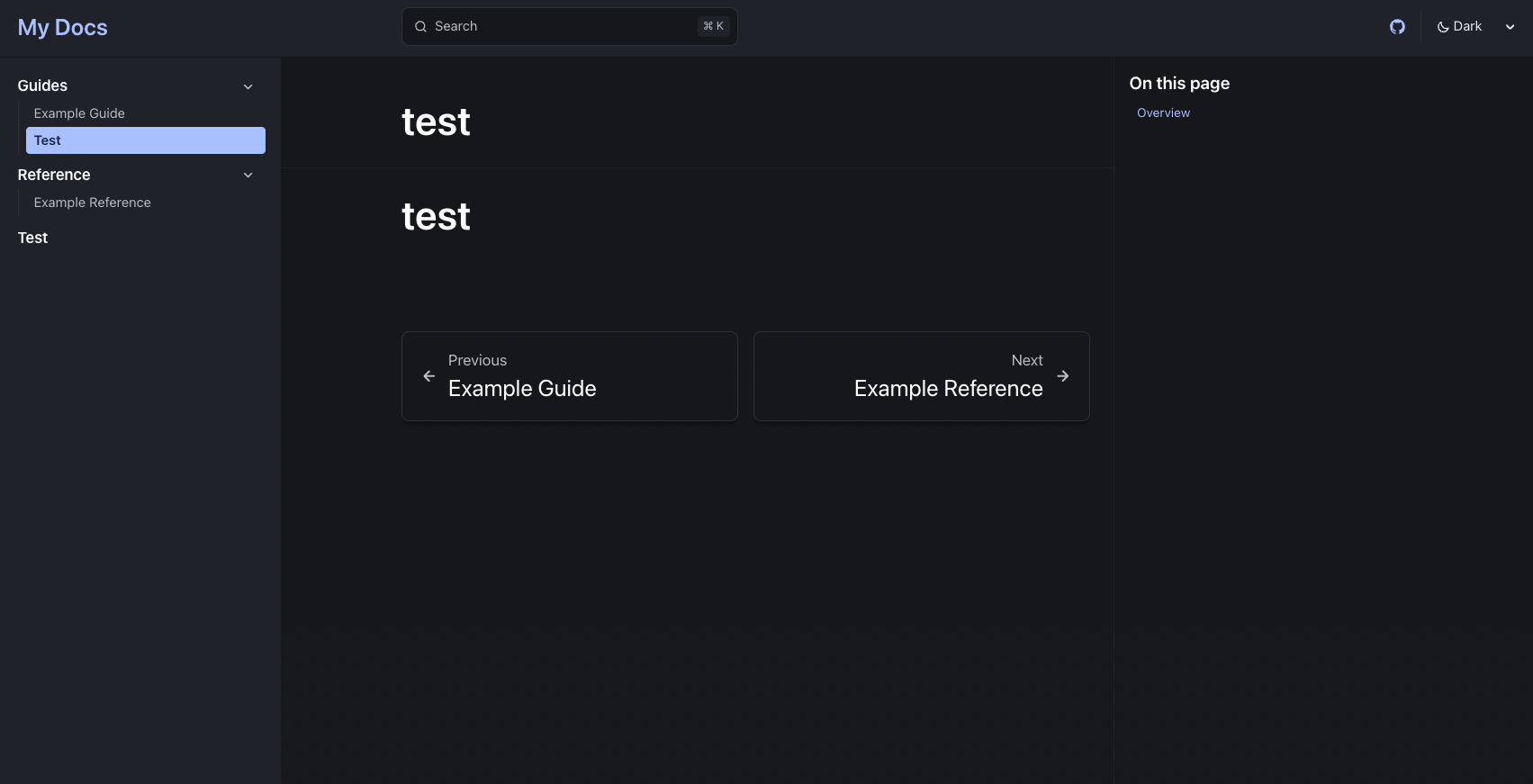
Image from Gyazo

ディレクトリ構造から生成する

毎回astro.config.mjsに直接記述するのは面倒なので、ディレクトリ構造から自動生成する方法を紹介します。

Referenceのサブメニューをみてみましょう。

astro.config.mjs
// @ts-check
import { defineConfig } from 'astro/config';
import starlight from '@astrojs/starlight';
// https://astro.build/config
export default defineConfig({
integrations: [
starlight({
title: 'My Docs',
social: {
github: 'https://github.com/withastro/starlight',
},
sidebar: [
{
label: 'Guides',
items: [
// Each item here is one entry in the navigation menu.
{ label: 'Example Guide', slug: 'guides/example' },
{ label: 'Test', slug: 'test' },
],
},
{
label: 'Reference',
autogenerate: { directory: 'reference' },
},
{
label: 'Test', link: '/test/'
},
],
}),
],
});

Referenceのサブメニューはautogenerateというオブジェクトを使って自動生成されています。

autogenerateのdirectoryには、ドキュメントを配置するディレクトリを指定します。

Referenceのサブメニューを追加するには、src/content/reference/ディレクトリにmdまたはmdxファイルを作成します。

実際に先ほどのtest.mdxをコピーしてsrc/content/reference/test.mdxを作成してみましょう。

Terminal window
cp src/content/docs/test.mdx src/content/docs/reference/test.mdx

サーバーを起動して、サイドバーにサブメニューが追加されていることを確認します。
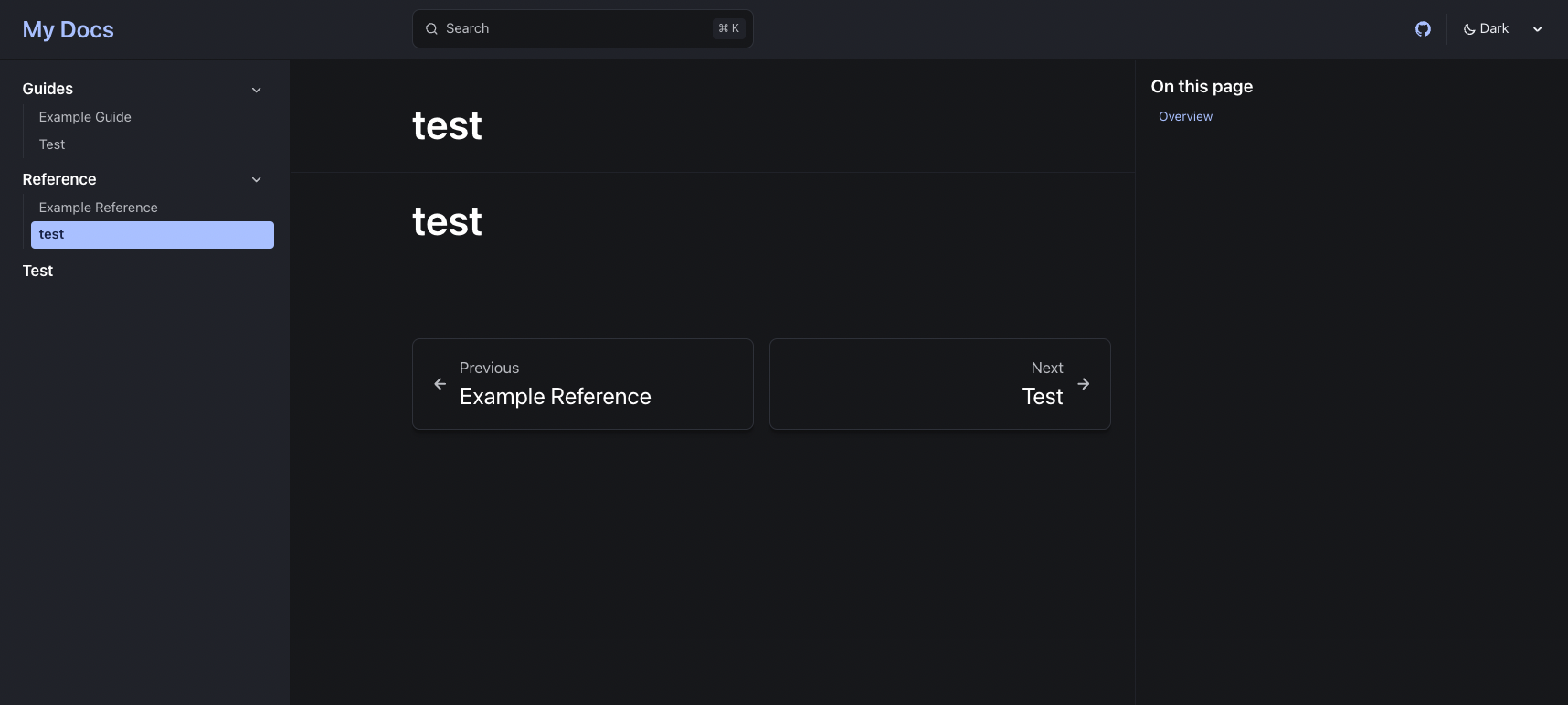
Image from Gyazo

これで、サイドバーにサブメニューを追加することができました。

違う分類を追加したい場合は、同じようにディレクトリを作成しsidebarに追加すれば良いです。

一般的な用途では、ディレクトリ構造から自動生成する方法を使うと便利ですが、同じmdxを使いまわしたい場合は直接記述する方法を使うと良いかもしれません。

サイトタイトルを変更する

デフォルトでは、サイトのタイトルが「My Docs」になっています。

サイトタイトルを変更するには、src/astro.config.mjsファイルを開いて、titleを変更します。

astro.config.mjs
// @ts-check
import { defineConfig } from 'astro/config';
import starlight from '@astrojs/starlight';
// https://astro.build/config
export default defineConfig({
integrations: [
starlight({
title: 'Test Docs',
social: {
github: 'https://github.com/withastro/starlight',
},
sidebar: [
{
label: 'Guides',
items: [
// Each item here is one entry in the navigation menu.
{ label: 'Example Guide', slug: 'guides/example' },
{ label: 'Test', slug: 'test' },
],
},
{
label: 'Reference',
autogenerate: { directory: 'reference' },
},
{
label: 'Test', link: '/test/'
},
],
}),
],
});

titleには、サイトのタイトルを指定します。

サーバーを起動して、サイトタイトルが変更されていることを確認します。
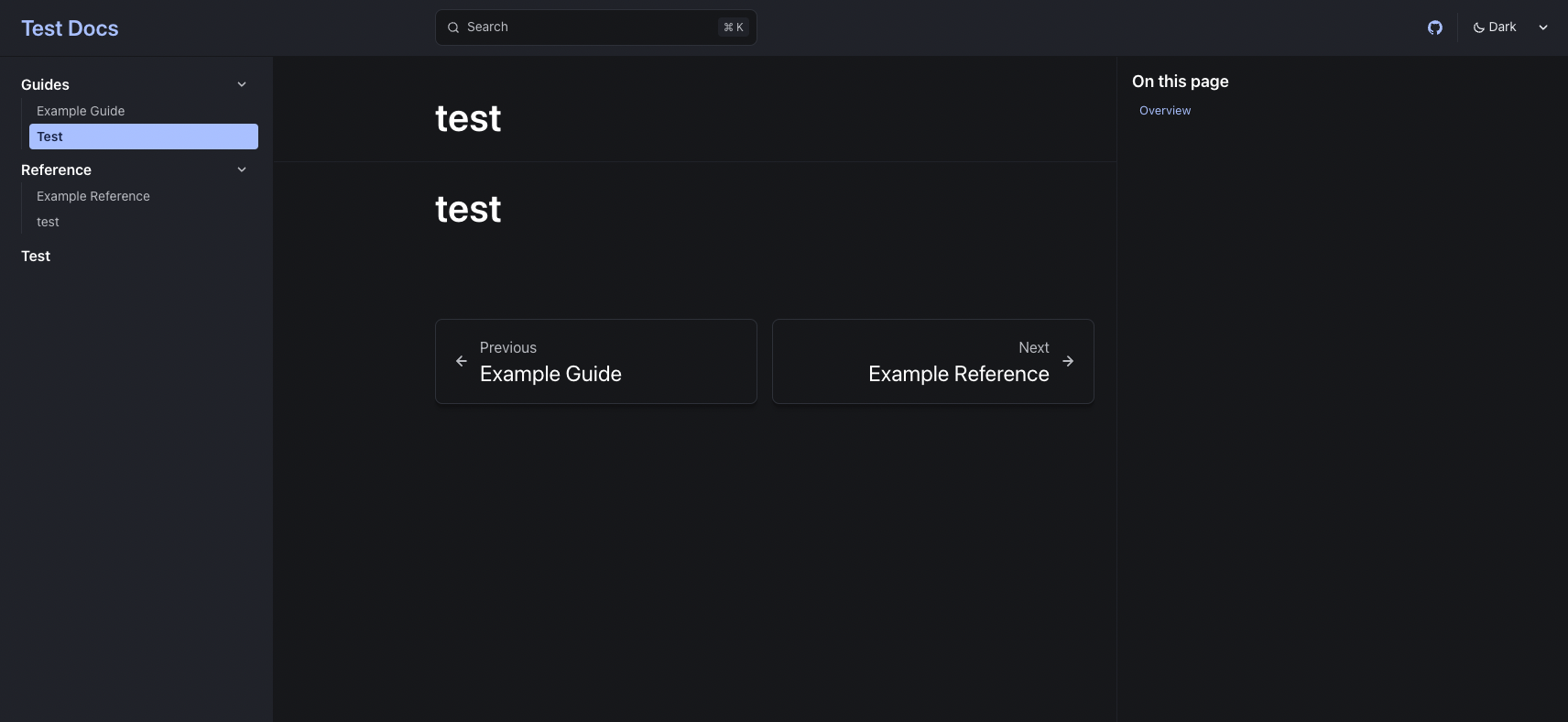
Image from Gyazo

トップページをドキュメントにする

簡易的なドキュメントサイトだとトップページがランディングページでなくても良い場合があります。

その場合は、src/content/docs/ディレクトリのindex.mdxファイルを修正します。

具体的には、下記の通り4行目のtemplate: splashを削除します。

src/content/docs/index.mdx
---
title: Welcome to Starlight
description: Get started building your docs site with Starlight.
template: splash
hero:
tagline: Congrats on setting up a new Starlight project!
image:
file: ../../assets/houston.webp
actions:
- text: Example Guide
link: /guides/example/
icon: right-arrow
- text: Read the Starlight docs
link: https://starlight.astro.build
icon: external
variant: minimal
---
import { Card, CardGrid } from '@astrojs/starlight/components';
## Next steps
<CardGrid stagger>
<Card title="Update content" icon="pencil">
Edit `src/content/docs/index.mdx` to see this page change.
</Card>
<Card title="Add new content" icon="add-document">
Add Markdown or MDX files to `src/content/docs` to create new pages.
</Card>
<Card title="Configure your site" icon="setting">
Edit your `sidebar` and other config in `astro.config.mjs`.
</Card>
<Card title="Read the docs" icon="open-book">
Learn more in [the Starlight Docs](https://starlight.astro.build/).
</Card>
</CardGrid>

Starlightでは、template: splashを指定することでページからサイドバーを消すことができます。

トップページは上記を指定することで、ランディングページとして作成されています。

templeteを削除してデフォルトに戻すことで、トップページをドキュメントにすることができます(defaultはtemplate: docs)。

サーバーを起動して、トップページがドキュメントになっていることを確認します。
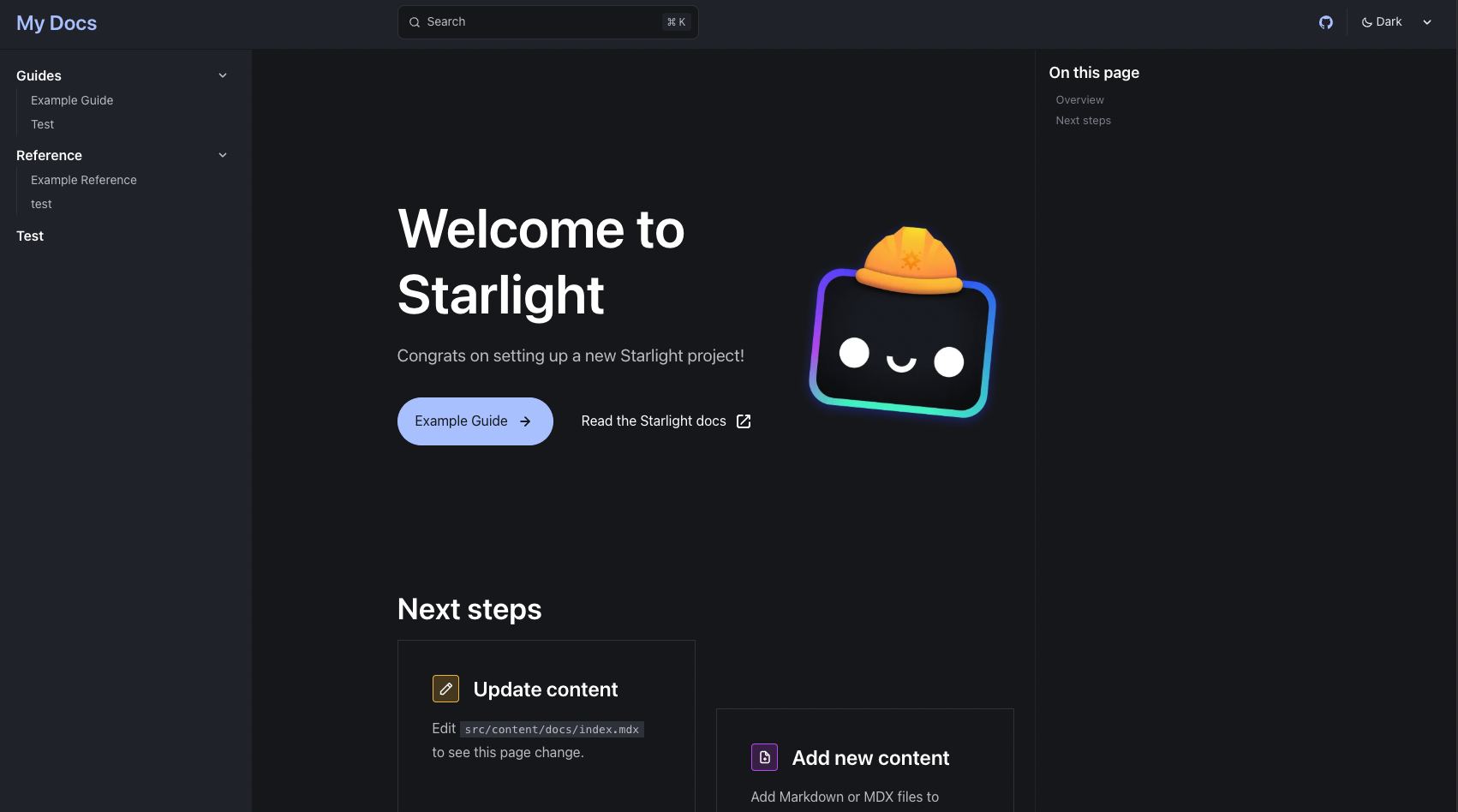
Image from Gyazo

これで、トップページをドキュメントにすることができました。

日本語対応する

今のままだと検索バーやダークモードの切り替えなどが英語のままです。

使えはしますが、日本語でドキュメントサイトを作るなら日本語対応すると良いでしょう。

Starlightはデフォルトで日本語にも対応しています。

src/astro.config.mjsファイルを開いて、以下のようにlocalesを追加します。

astro.config.mjs
// @ts-check
import { defineConfig } from 'astro/config';
import starlight from '@astrojs/starlight';
// https://astro.build/config
export default defineConfig({
integrations: [
starlight({
title: 'My Docs',
locales: {
root: {
label: '日本語',
lang: 'ja',
},
},
social: {
github: 'https://github.com/withastro/starlight',
},
sidebar: [
{
label: 'Guides',
items: [
// Each item here is one entry in the navigation menu.
{ label: 'Example Guide', slug: 'guides/example' },
{ label: 'Test', slug: 'test' },
],
},
{
label: 'Reference',
autogenerate: { directory: 'reference' },
},
{
label: 'Test', link: '/test/'
},
],
}),
],
});

localesの中にrootを設定することで、日本語に対応します。

サーバーを起動して、日本語に対応していることを確認します。
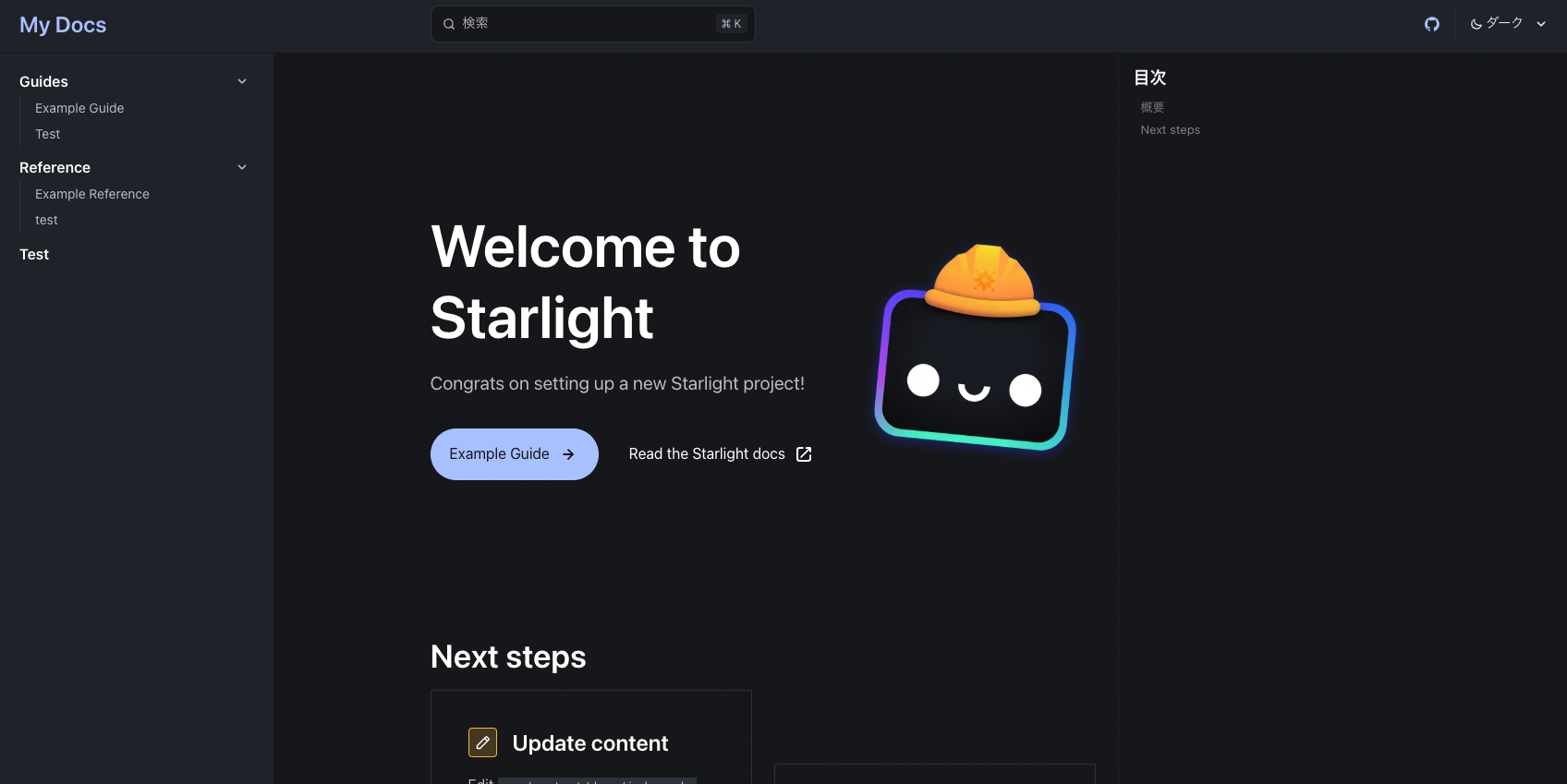
Image from Gyazo

これで、日本語対応することができました。

ここまでで、最低限日本語のドキュメントサイトを作るには十分かと思います。

細かいカスタマイズは、Starlightのドキュメントを参考にしてください。

参考